
Email signatures are more than just a means to sign off a message; they’re an opportunity to communicate your brand message. As well as including all your contact details (name, email address, phone and fax numbers), be sure to include your company name and tagline, and links to your website and social media profiles.
Here’s how to create an email signature in Outlook 2003:
1. Go to Tools on the main toolbar
2. Click on Options > a dialogue box will open.

3. Click on the Mail Format tab
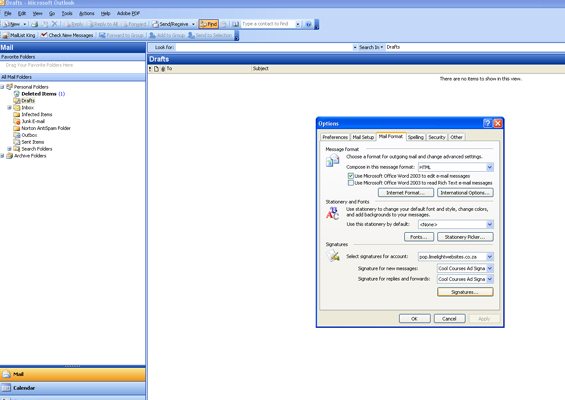
4. Click on Signatures > a new dialogue box will open: ‘Create new signature’

5. Give your signature a title > choose whether you want to start from a blank signature, or whether you want to use an existing signature as a template > Click Next

6. Write your signature in the text box provided

7. Click Finish.


